
Get Into 3D Printing
Everything you need to go from zero to printing your first Bitcoin accessory. Pick a printer, choose your filament, find your files, and start building.
// Jump to Section
Recommended Printers
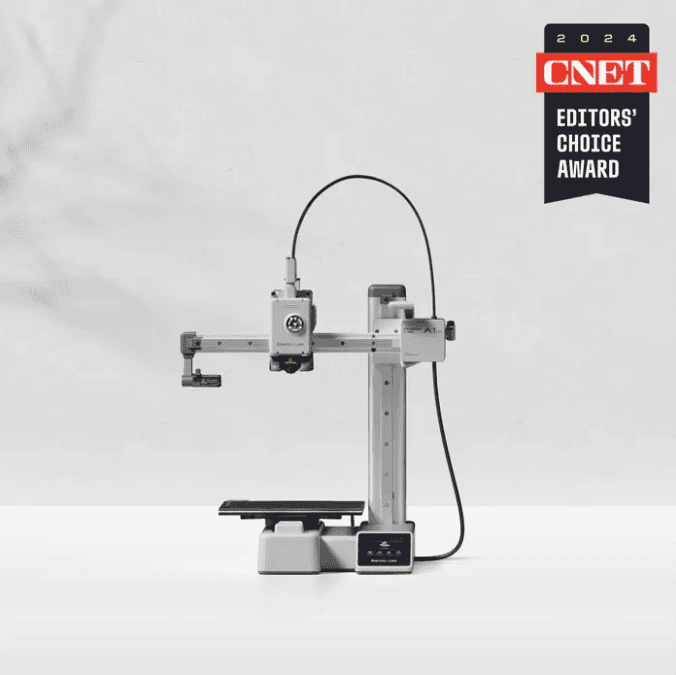
- Build volume: 180 × 180 × 180 mm
- Speed: Up to 500 mm/s
- Full auto-calibration — no bed leveling headaches
- Compact, quiet, whisper-mode capable
- AMS Lite ready — up to 4-color printing
- Best for PLA, PETG, TPU
- Ships immediately — no lead time

- Build volume: 256 × 256 × 256 mm
- Speed: Up to 500 mm/s, CoreXY + enclosure
- Fully enclosed — prints ABS, ASA, Nylon, Carbon Fiber
- AMS compatible — up to 16-color multicolor printing
- Built-in air filter + auxiliary cooling fan
- The workhorse we run in our shops
- Ships immediately — no lead time
- Build volume: 256 × 256 × 256 mm
- Speed: Up to 500 mm/s, CoreXY motion
- Quieter and faster than the P1S
- AMS 2 Pro compatible — up to 16-color printing
- Better filtration — great for home office use
- Best for PLA, PETG, TPU, ABS, ASA
- Ships immediately — no lead time
- Build volume: 340 × 320 × 340 mm — largest in the lineup
- Speed: Up to 1,000 mm/s, 20,000 mm/s² acceleration
- 65°C actively heated chamber — prints Nylon, PC, PPA, CF
- 350°C hotend — handles the full Bambu filament lineup
- PMSM servo extruder — 67% more extrusion force than standard
- 23 sensors + 3 cameras + AI real-time failure detection
- Operates below 50 dB — runs overnight without disruption
- AMS 2 Pro compatible — up to 16-color printing
Choosing a Filament
The most popular and beginner-friendly filament on the planet. Made from renewable resources like cornstarch, it’s biodegradable and easy to work with. Start here — no exceptions.
- Great for: decorative prints, art, figurines, prototypes
- Works in every printer — no enclosure needed
- Huge variety of colors including silky, matte, glow-in-dark
- Avoid for: parts exposed to heat or outdoor UV
The upgrade from PLA for anything that needs to actually work. Same plastic as water bottles but tougher. Better heat resistance, less brittle, and great for mechanical parts. A bit trickier to print — watch for stringing.
- Great for: brackets, stands, functional enclosures, miner parts
- Pro tip: dry your spool — PETG is moisture-sensitive
- Use a glue stick on PEI beds — PETG sticks aggressively
- Avoid for: parts needing extreme flexibility
Rubber-like, flexible, nearly impossible to break. TPU opens up a whole category of prints that rigid filaments simply can’t do — phone cases, gaskets, dampeners, watch straps. Trickier to print than PLA or PETG but very rewarding once dialed in.
- Great for: phone cases, watch bands, vibration dampeners, grips, gaskets
- Direct drive extruder strongly recommended — Bowden setups jam
- Highly moisture-sensitive — always dry before printing
- Use minimal retraction (0.5–1 mm) to avoid clogs and stringing
- Don’t use AMS/multi-filament systems with TPU — it will jam
- Softer = harder to print. Start at 95A, go softer once you have it dialed
From flexible TPU to carbon fiber reinforced nylon — the world of exotic filaments is massive. Once you’ve mastered PLA and PETG, these materials open up a whole new level of what you can create.
- TPU — flexible, rubber-like, great for phone cases and dampeners
- ABS / ASA — heat & UV resistant, needs enclosure
- Carbon Fiber Nylon — ultra-strong, needs hardened nozzle
- Silk PLA — shiny metallic-look finish, easy to print
- Glow in the Dark — fun, prints like PLA
- Wood / Metal fills — aesthetic, needs larger nozzle
Choosing a Slicer
Bambu Studio Recommended
The official slicer for all Bambu Lab printers. Built-in profiles for every Bambu machine mean you can go from file to print in minutes. Supports multi-color AMS printing, cloud slicing, and one-click send to printer over WiFi.
Best for: Anyone with a Bambu printer. Start here.
- Free to download and use
- Built-in profiles optimized for Bambu hardware
- WiFi print sending — no SD card needed
- Multi-color AMS support baked in
- Download Bambu Studio →
Prusa Slicer
Originally built for Prusa printers but works great with most FDM machines including Bambu. Highly configurable with deep control over every print parameter. A favorite among power users who want granular control.
Best for: Advanced users who want full control over settings.
- Free and open source
- Excellent support profiles for many printers
- Variable layer height and modifier mesh tools
- Active community with shared profiles
- Download PrusaSlicer →
CURA
The most widely used slicer in the world. Made by Ultimaker and free forever. Massive plugin ecosystem and support for virtually every printer on the market. Slightly steeper learning curve but incredibly powerful.
Best for: Non-Bambu printers or anyone who wants the widest compatibility.
- Free and open source
- Supports 400+ printer profiles
- Huge library of community plugins
- Great for multi-material and support optimization
- Download CURA →
OrcaSlicer Community Favorite
The community’s favorite power slicer — a fork of Bambu Studio that takes the best features from Bambu Studio, PrusaSlicer, and SuperSlicer and packages them into one clean app. Rapidly becoming the go-to for makers who want maximum control without sacrificing ease of use.
Best for: Advanced users who want the best calibration tools available on any printer.
- Free and open source — no accounts, no cloud required
- Best-in-class built-in calibration tools (flow, pressure advance, temp towers)
- Works with virtually every FDM printer on the market
- Modern clean UI with frequent updates from an active community
- Download OrcaSlicer →
Finding Something to Print
File Factory
Our own collection of open-source Bitcoin 3D print files. Donate sats to unlock STL files for everything from shutter shades to space heater mods, node cases, and more. Made by us, for Bitcoiners.
- Bitcoin-focused designs you won’t find anywhere else
- Pay with sats via Lightning — instant download
- New files added regularly
- Browse the File Factory →
Thingiverse
The original home of free 3D printable files with over 3 million designs. Community-driven, everything from practical parts to art to gadgets. Quality varies but there’s something for every printer and every skill level.
- Completely free, massive library
- Filter by category, license type, or printer
- Community remixes and user makes
- Browse Thingiverse →
Printables
Prusa’s file sharing platform — newer than Thingiverse but growing fast. Generally higher quality files with better filtering tools. Earn points for uploading designs and printing community models. Cleaner interface overall.
- High quality curation and file standards
- Earn Prusameters for printing community designs
- Excellent search and filtering tools
- Browse Printables →
Yeggi // MAX SEARCH
The Google of 3D printing files. Yeggi is a search engine that crawls Thingiverse, Printables, MyMiniFactory, Cults3D, and dozens of other repositories all at once — so instead of searching each site individually, you search them all in one shot.
- Searches 10+ major STL repositories simultaneously
- Free to use — results link directly to the original source
- Best way to find obscure or niche designs fast
- Filter by license type, category, and source site
- Search Yeggi →
Designing Your Own Thing
TinkerCAD // Start Here
Browser-based, drag-and-drop 3D design made by Autodesk. Zero installation, zero experience needed — you’re designing within minutes. The best possible entry point for beginners. Master this first, then level up.
- Free, runs entirely in your browser — nothing to install
- Easiest possible entry point into 3D design
- Perfect for simple functional parts and prototypes
- Huge library of built-in shapes and learning projects
- Exports STL files directly — slicer ready
- Try TinkerCAD Free →
Fusion 360 // Rick’s Pick
The industry-standard CAD tool for functional, precise 3D modeling. This is what Rick uses at CryptoCloaks to design every product. When you’re ready to graduate from TinkerCAD, this is where you come.
- Free for personal and hobbyist use
- Parametric modeling — change dimensions without rebuilding
- Built-in STL export and slicer integration
- Handles complex assemblies, joints, and mechanical parts
- Huge library of YouTube tutorials for every level
- Get Fusion 360 Free →
Blender
The powerhouse free 3D tool used by artists, animators, and designers worldwide. Not ideal for mechanical/functional parts, but unmatched for organic shapes, sculptures, figurines, and artistic designs.
- Completely free and open source — forever
- Best for artistic, organic, and sculptural designs
- Active community with millions of tutorials
- Supports STL export for 3D printing
- Steeper learning curve — worth it for creative work
- Download Blender →
FreeCAD // Open Source CAD
The fully open-source alternative to Fusion 360. No account required, no cloud dependency, no subscription ever. Parametric modeling for engineers and makers who want full control and zero vendor lock-in.
- 100% free and open source — runs fully offline
- Parametric CAD modeling for precise functional parts
- No Autodesk account or cloud required — ever
- Great for mechanical parts, enclosures, and engineering work
- Exports STL directly — active community with growing plugin library
- Download FreeCAD →
Pro Tips Before You Start
🖨 The Golden Rules of 3D Printing
- Level your bed. 90% of failed prints come from a bad first layer. Get this right first.
- Dry your filament. Moisture causes popping, bubbling, and stringing. Keep spools in a dry box or sealed bag with desiccant.
- Start with PLA. Master one material before moving on. PLA teaches you everything you need to know.
- Don’t touch a print mid-run. Vibration kills layer adhesion. Let it finish before you inspect it.
- First layer speed matters. Slow your first layer down to 20–25mm/s for better adhesion — especially with PETG.
- Use a temperature tower. Every filament brand is different. Run a temperature tower to dial in your exact settings.
- Keep your nozzle clean. A quick cold pull or brass brush before switching materials prevents clogs and color contamination.
- Calibrate your flow rate. Bambu printers auto-calibrate, but on other printers a flow rate calibration print saves you hours of failed prints.
“Every Bitcoiner Should Own a 3D Printer.”
— Rick, CryptoCloaks · Bitcoin News 2025
Ready to print your first Bitcoin accessory? Browse our open-source file collection and get started.