

Bitaxe FAQ
Everything you need to set up, configure, and troubleshoot your Bitaxe home miner.
⚡ Need more help or stuck with something?
Join our X Community →
// Jump to Section
Hardware Setup
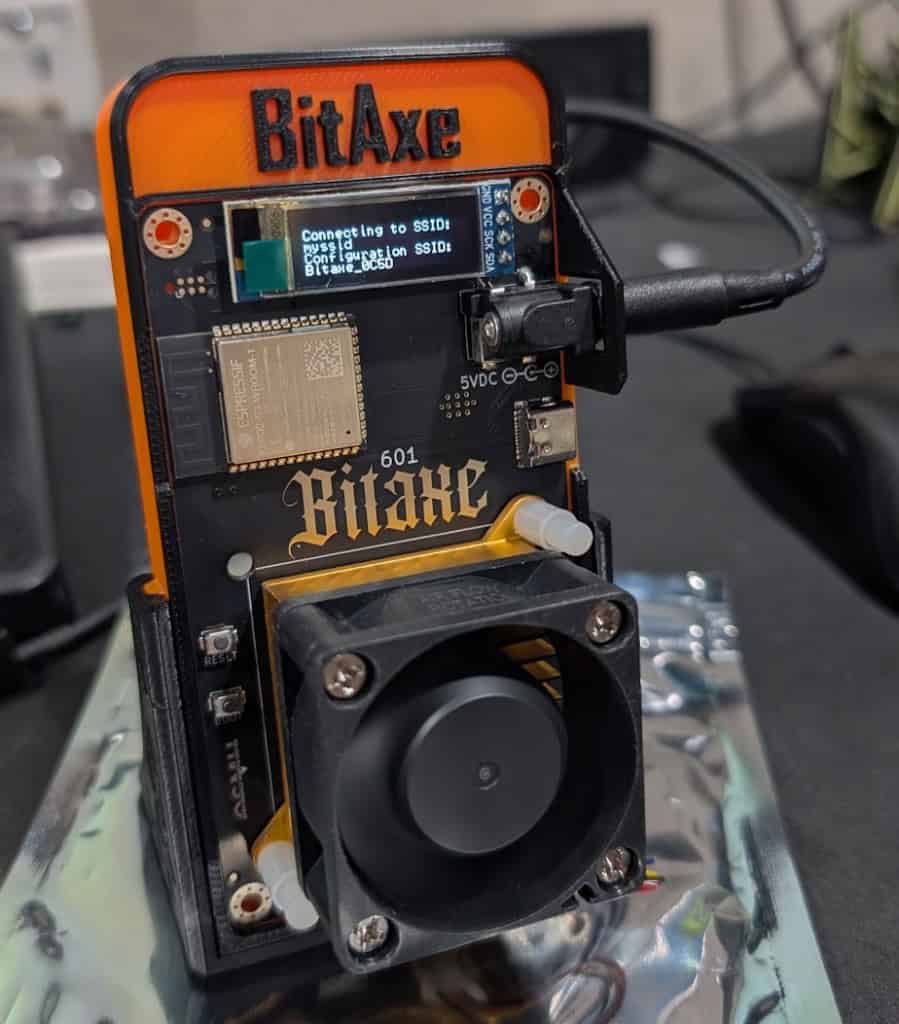
Install the Board in the Case
Attach the board to your new custom CryptoCloaks case using the 4 screws included in your package.
This ensures the board is secure and won’t fall out.
Plug the Board In
// Step 02Once the board is secured, grab the included PSU and plug the unit in. Watch it fire up!
Connect to the Board
// Step 03After powering on, your screen will show “Configuration SSID”. On your phone or computer, open WiFi and look for the board’s network.
Example: Bitaxe_0C5D
Connect to it — a page will open to enter your home WiFi credentials.
Screen Installation
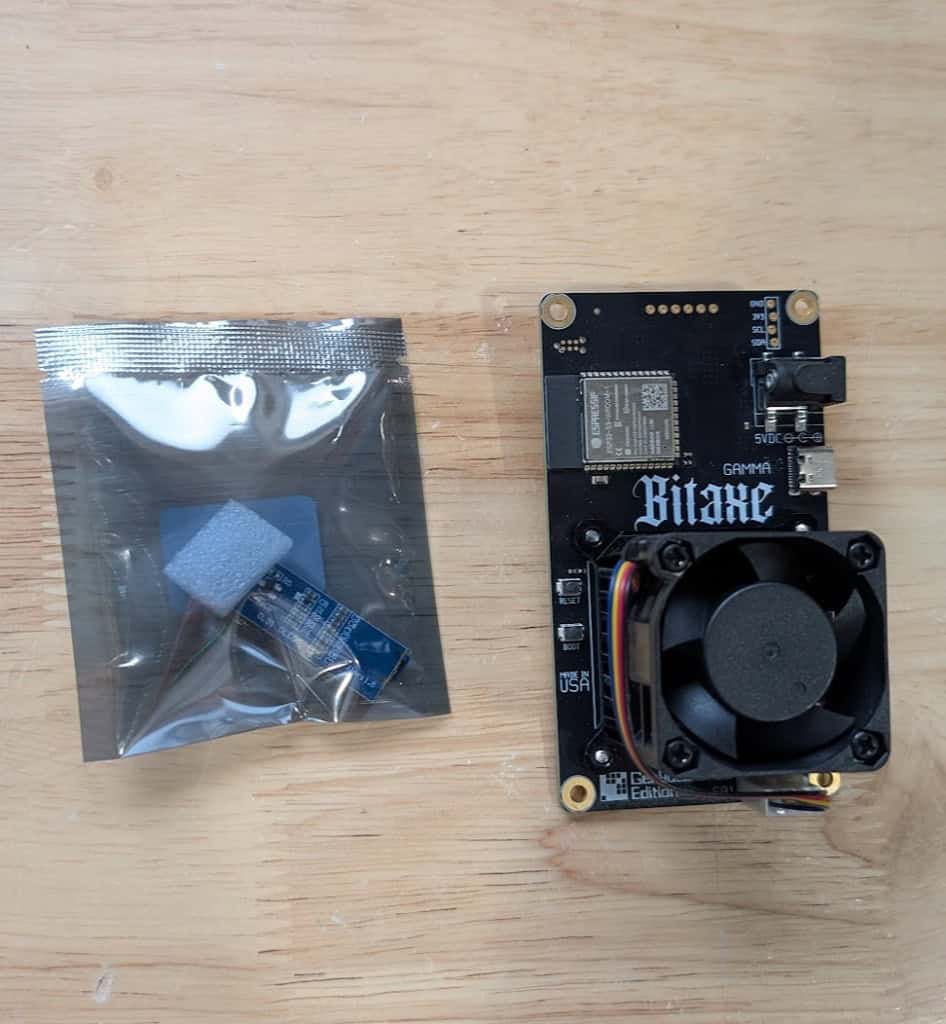
Screen Not Lighting Up?
The screen ships detached and needs to be seated before first use. It can also work loose in transit — reseating it fixes the issue 99% of the time.
No tools needed. Takes about 10 seconds.
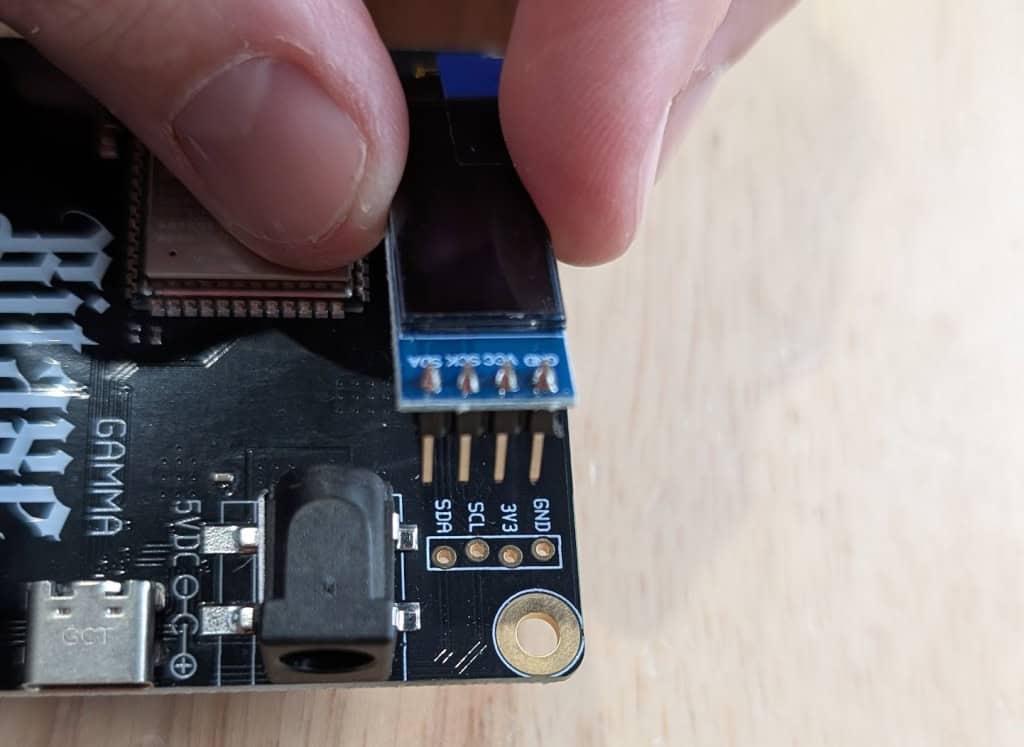
Line Up the Pins
Align the screen pins with the corresponding holes on the top of the board.
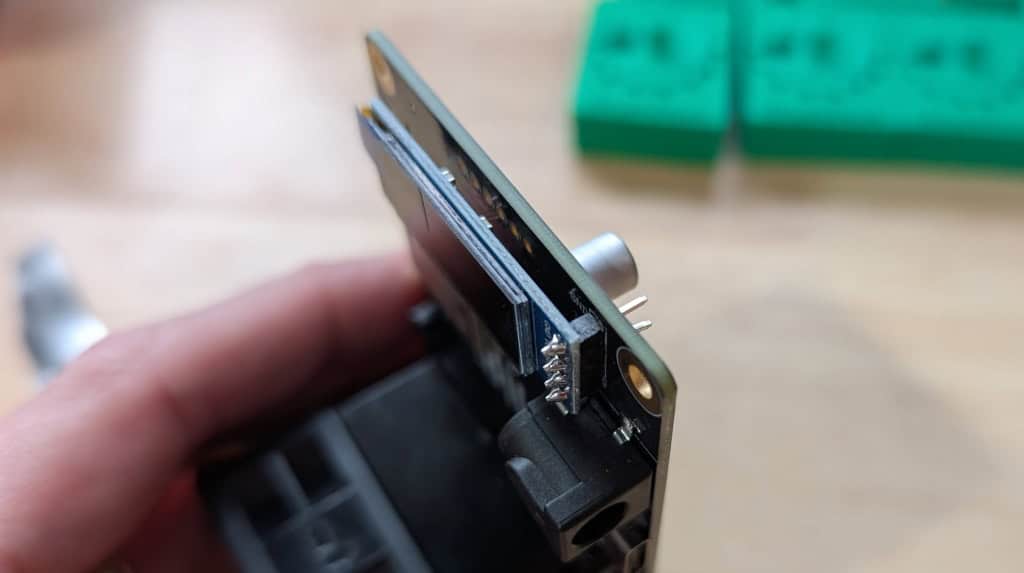
Seat the Screen
Push the screen all the way down until it is fully and firmly seated against the board.
WiFi & Firmware
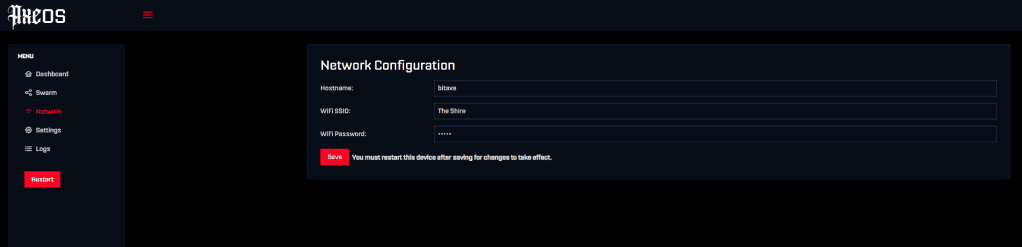
Enter your WiFi SSID and WiFi Password. The Host Name is what your Bitaxe will be called on your local network.
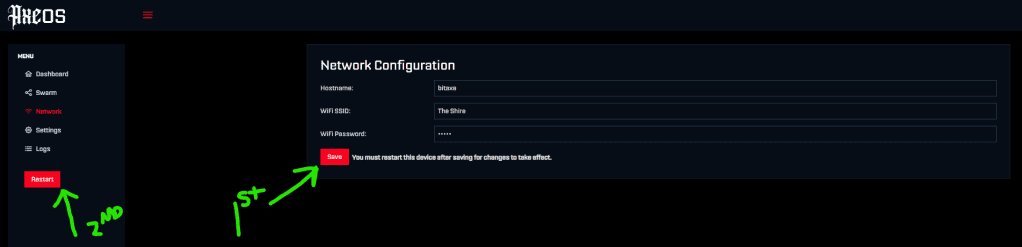
Once entered, click Save then Restart.
NOW GRAB THE IP ADDRESS ON YOUR BITAXE LCD AND TYPE THAT INTO YOUR WEB BROWSER TO CONNECT TO IT!
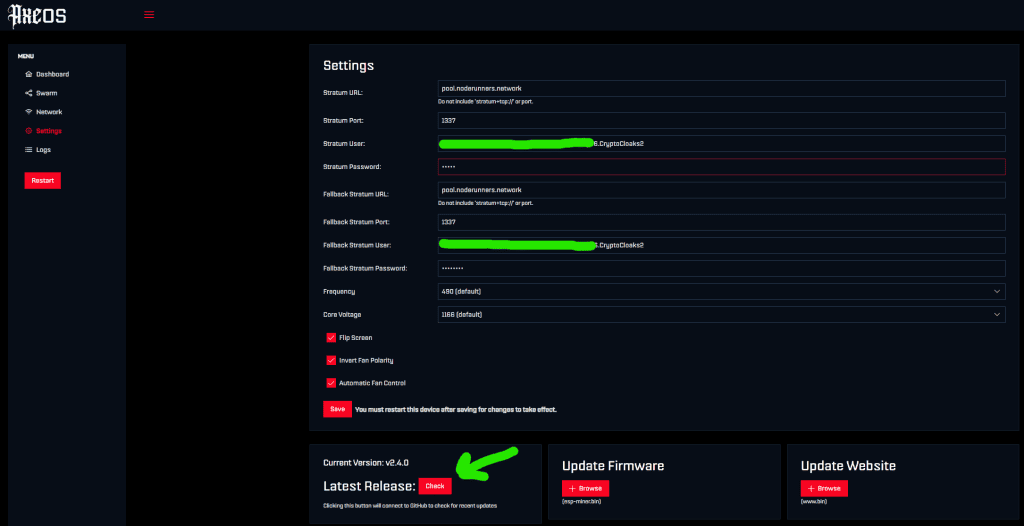
Start by clicking “Check” to see if a newer version is available.
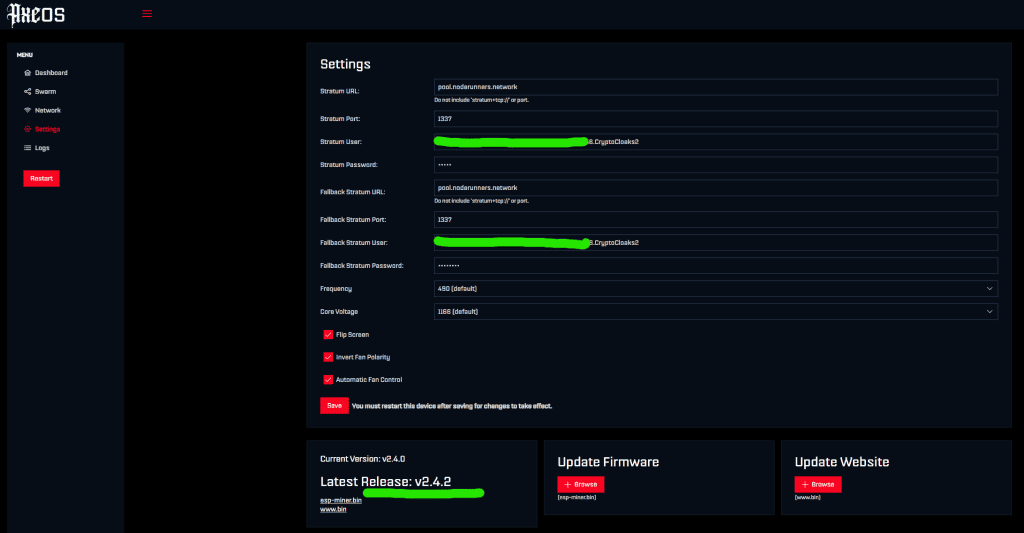
Current version is showing v2.4.2 but there’s a new one! Let’s get the latest changes that will help make your board run better!
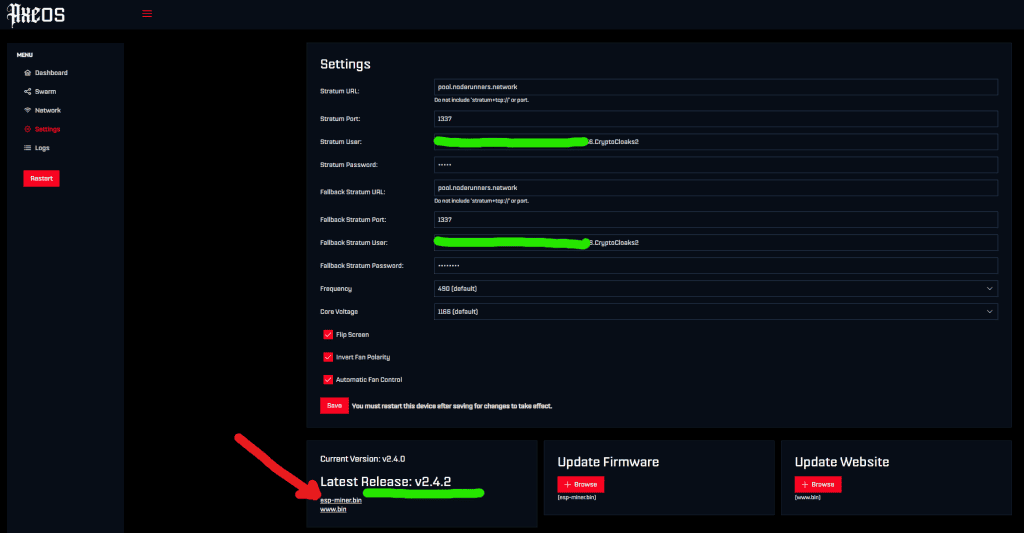
Click “esp.miner.bin” to download the latest firmware. Save this file to your computer. (If the file disappears, make sure your browser isn’t auto-deleting downloads.)
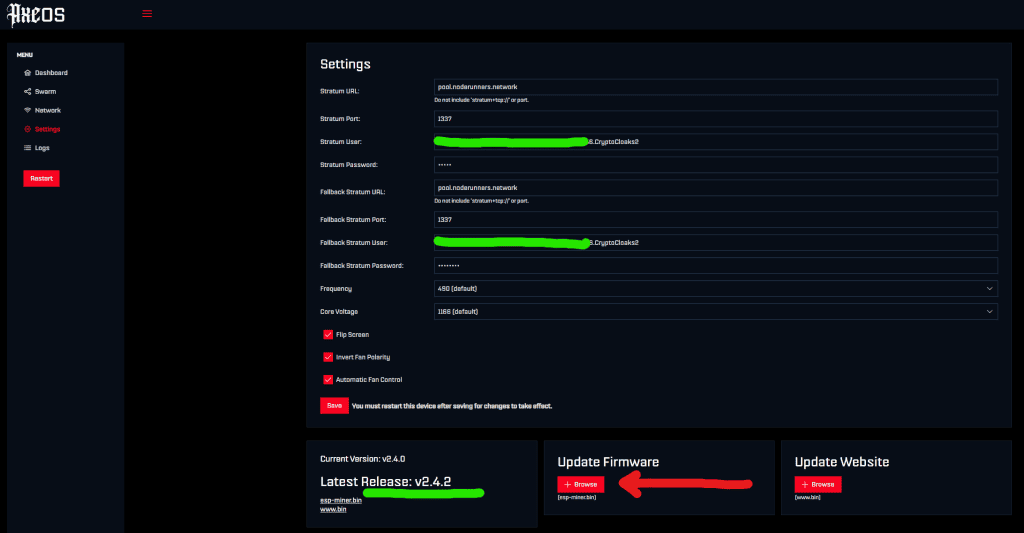
File saved — now click the Browse button to select it.
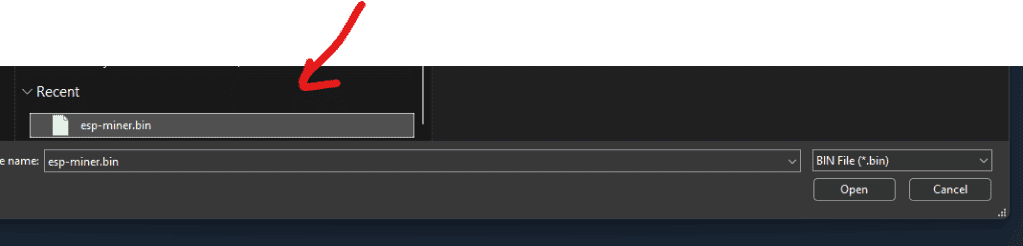
Find your downloaded file and click Open. Once you hit Open — do not touch anything!
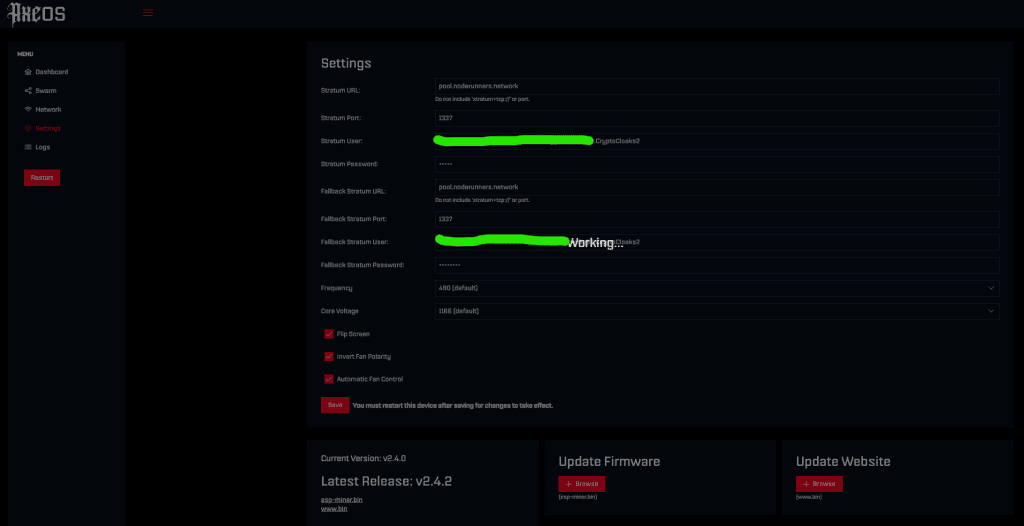
The screen will change to “Working…” — it’s upgrading! Let it do its thing. Do not unplug your Bitaxe!
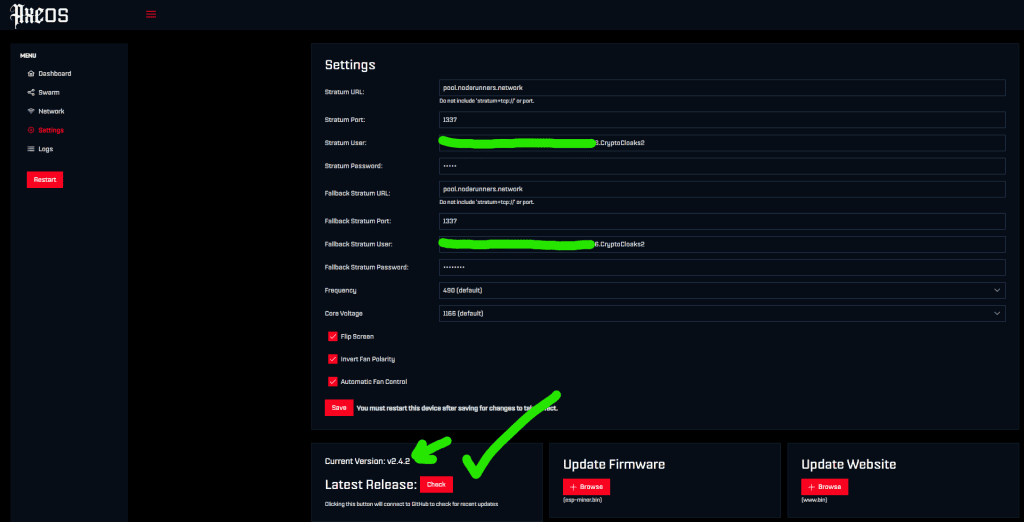
Refresh the page and you’ll see the new version number confirmed. YOU DID IT!
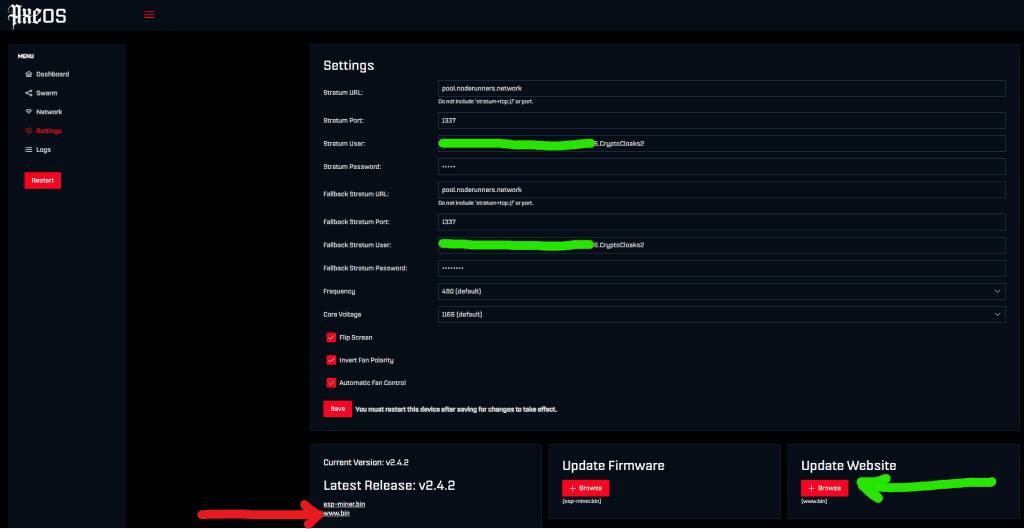
Now update the Website/UI too! Click “www.bin” to download it, then click Browse under “Update Website” and repeat the same steps.
Congrats! I knew you could do it! Wasn’t so hard or scary was it? Now you’re set to easily update to the latest and greatest on your own!
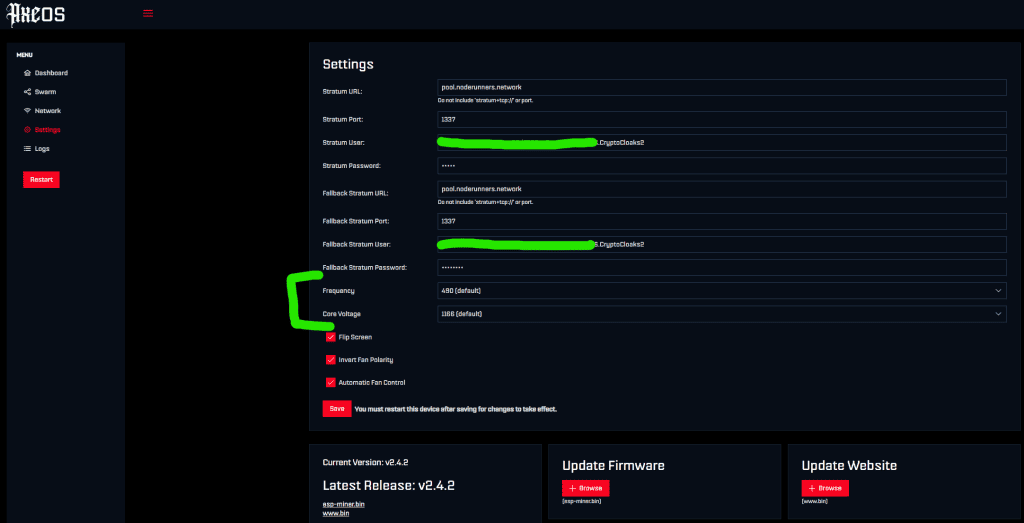
Depending on your Bitaxe board, double check you are running default settings for frequency and core voltage. Changing these without knowledge can cause overheating.
Pool Connection
🏊 Finding a Pool
Our current favorite solo mining pool is CK Pool — it keeps our Bitaxes hashing without dropped connections.
Avoid the default Public Pool. Shady tactics from them. Don’t trust, verify.

⚙️ Pool Settings
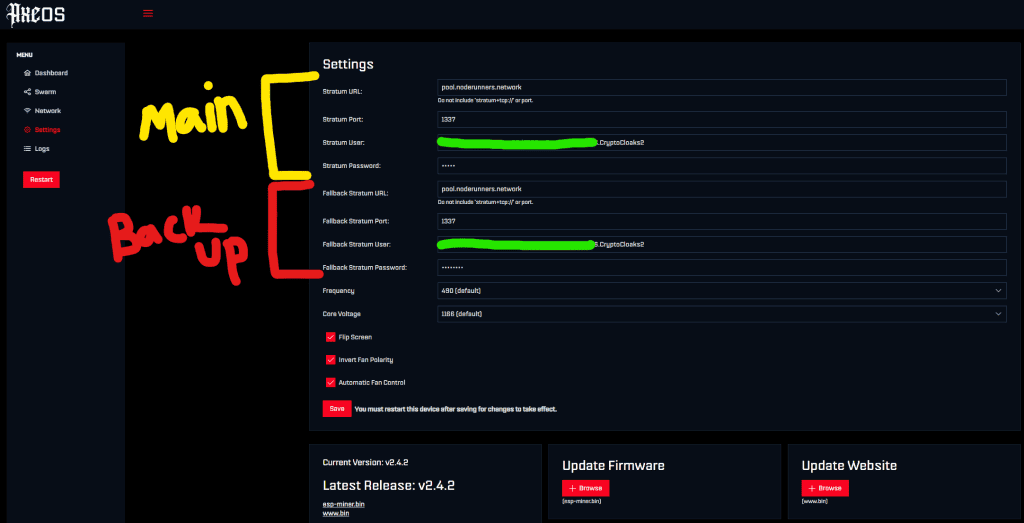
Enter the Stratum URL and Stratum Port for your chosen pool.
For the Stratum User, enter your Bitcoin address followed by a dot and a custom miner name:
The Fallback Stratum (firmware v2.4+) automatically connects to a backup pool if your primary drops. You can use the same pool for both.
Common Issues & Fixes
- Reset overheat mode via the webUI.
- Reset frequency and core voltage to factory defaults.
- When overheated, the IP won’t show on the OLED — retrieve it from your router’s device list instead.
- Hold the Boot button and press Reset to enter firmware download mode.
- Use the Bitaxe Web Flasher to flash the correct firmware onto your device.