
CRYPTOCLOAKS / FIELD GUIDE 01
Build your
SeedSigner case.
Real shop photos. Two camera fits. Pick the one that matches your hardware and follow it from loose parts to the finished case.
Before you start: power off and unplug the Pi. Check your camera size, Pi model, GPIO header and selected case opening. The CryptoCloaks case is sold separately from the electronics. For hardware compatibility and software-image verification, use the official SeedSigner hardware guide and software page. Test the electronics before closing the case.
01 / LARGER CAMERA MODULE
Big Pi Camera build
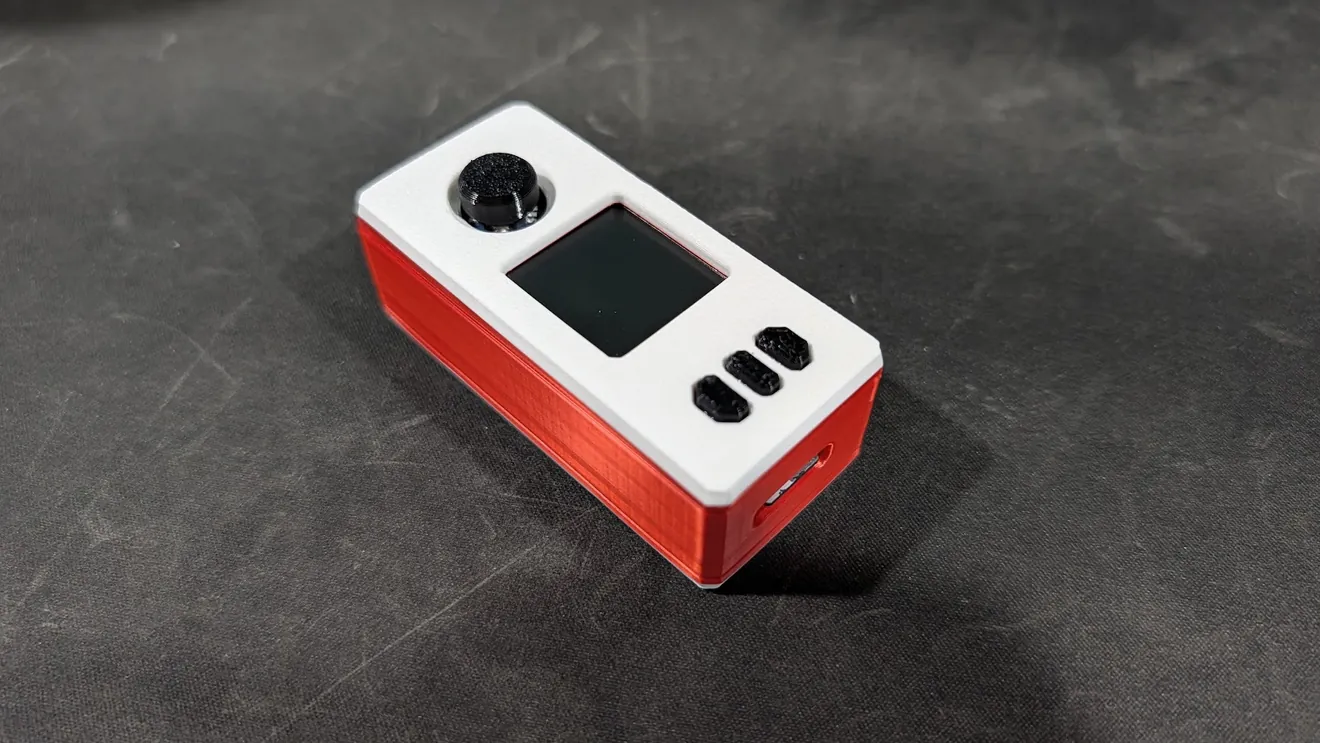
Shown in red and white. Your colors may differ; the assembly path is the same for the matching Big Pi Camera fit.
STEP 01
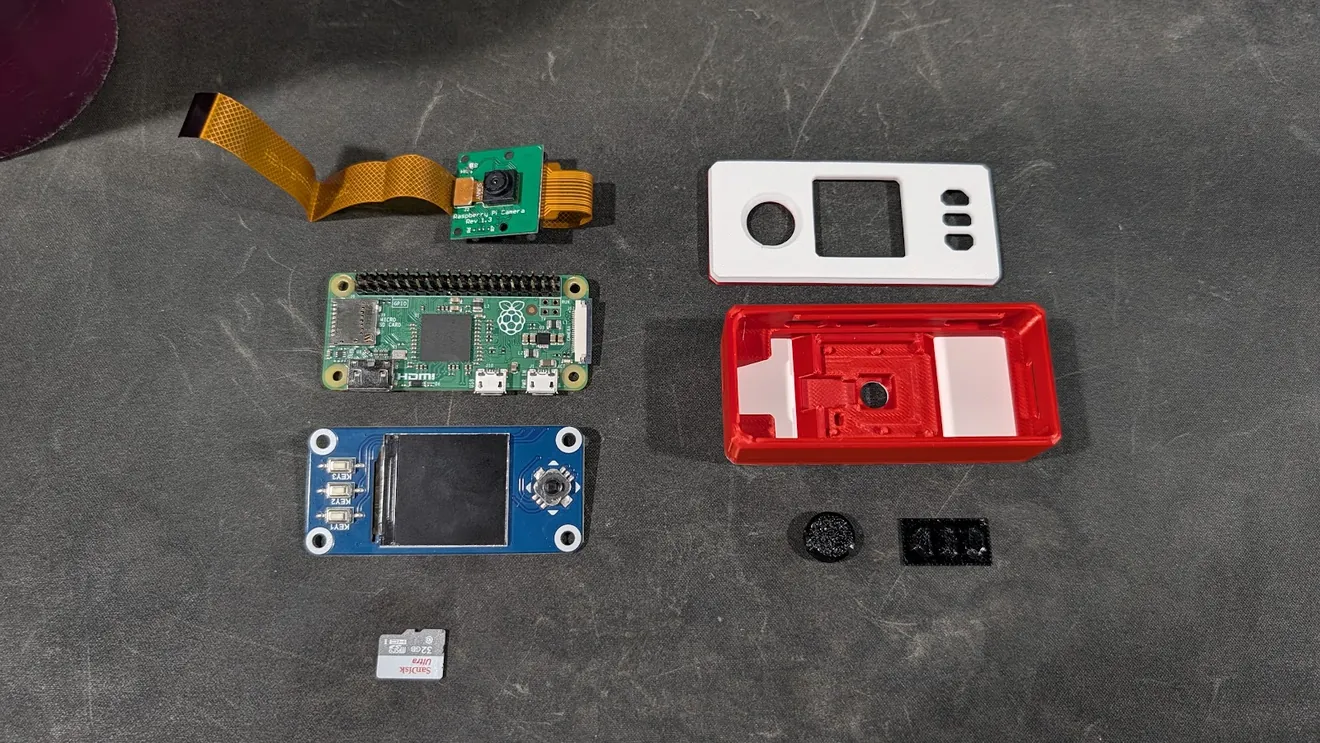
Lay out your parts
The red body and white face shown here are one color example. Match your own case’s Big Pi Camera selection to the larger camera board before you start. Have ready: your CryptoCloaks case in the camera fit you chose, a compatible Raspberry Pi Zero with a fitted 40-pin GPIO header, a Pi Zero-compatible camera and ribbon, a Waveshare 1.3-inch 240×240 LCD HAT, and a microSD card with the official SeedSigner image. The case listing is for the printed case only; the electronics and software in these photos are not included.
STEP 02
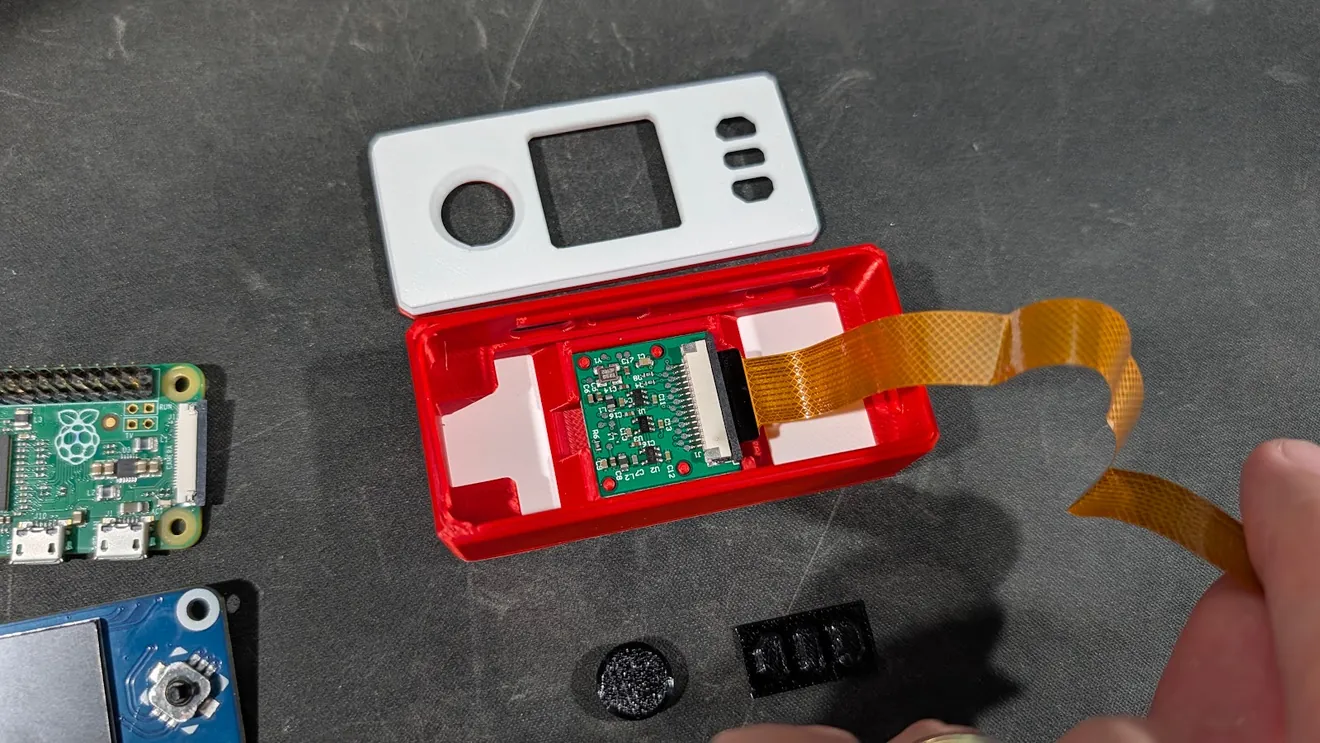
Seat the larger camera
Place the camera board in the camera area of the base. Keep the lens lined up with its opening and leave the ribbon free for the Pi connection. If the module does not sit naturally, stop and check the camera-fit option rather than pressing harder.
STEP 03
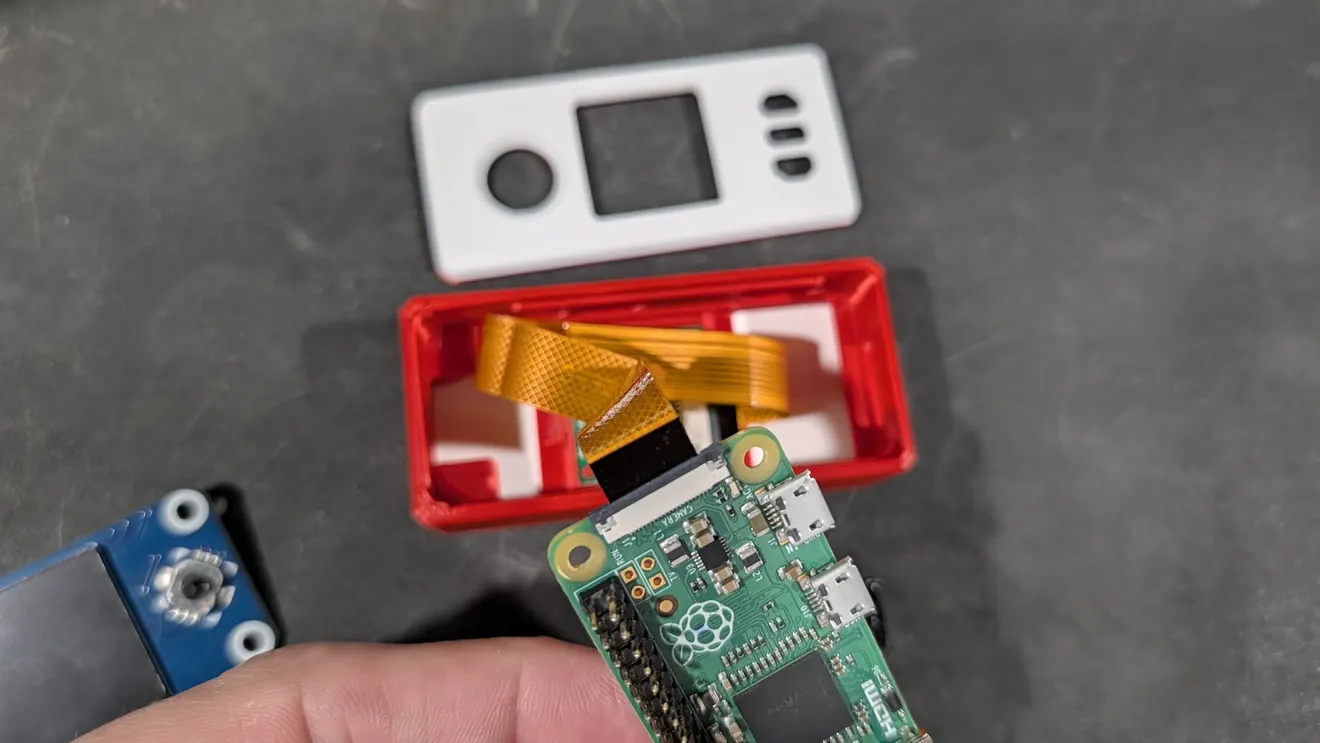
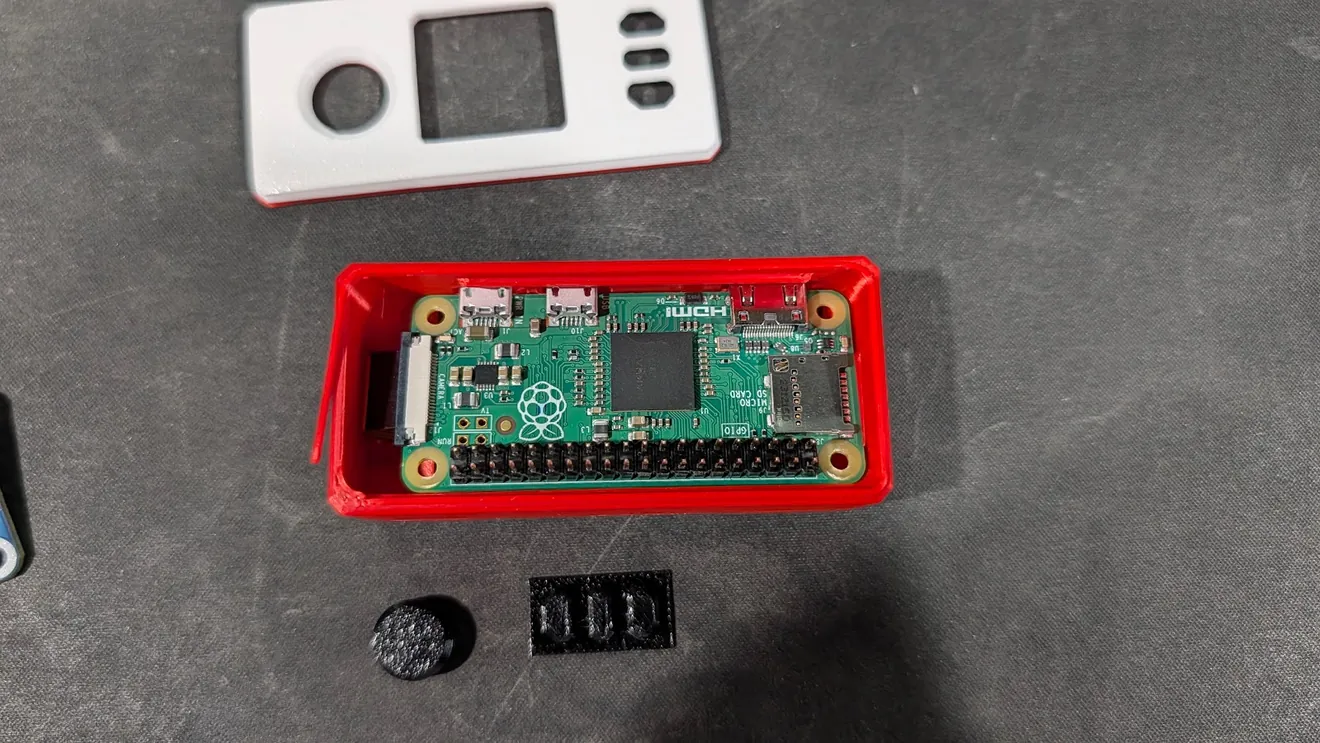
Connect the Pi and settle the ribbon
With power disconnected, connect the camera ribbon to the Pi Zero using the connector’s retaining latch and the correct contact orientation for your hardware. The photos do not show the contacts, so do not use the ribbon’s printed face as a shortcut. Fold the cable gently into the case without a sharp crease or pinch, then seat the Pi with its ports aligned to your case’s openings.
STEP 04
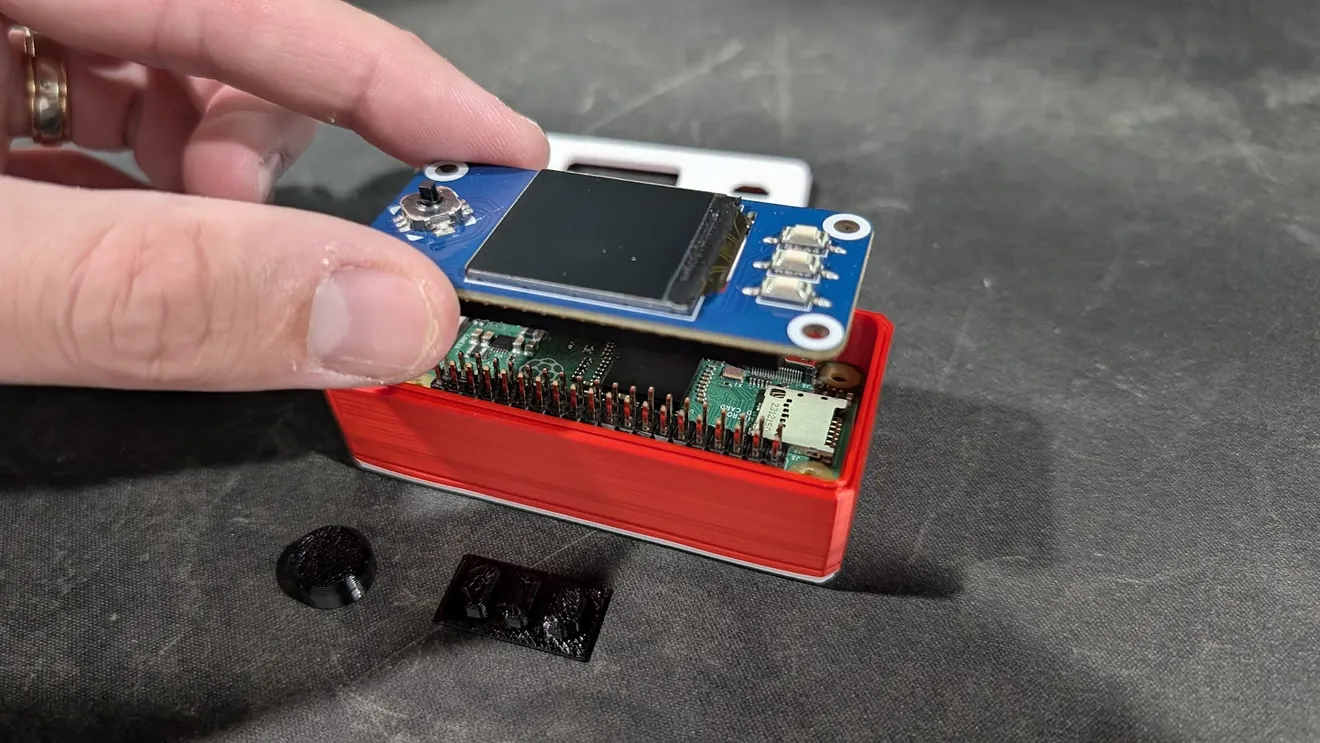
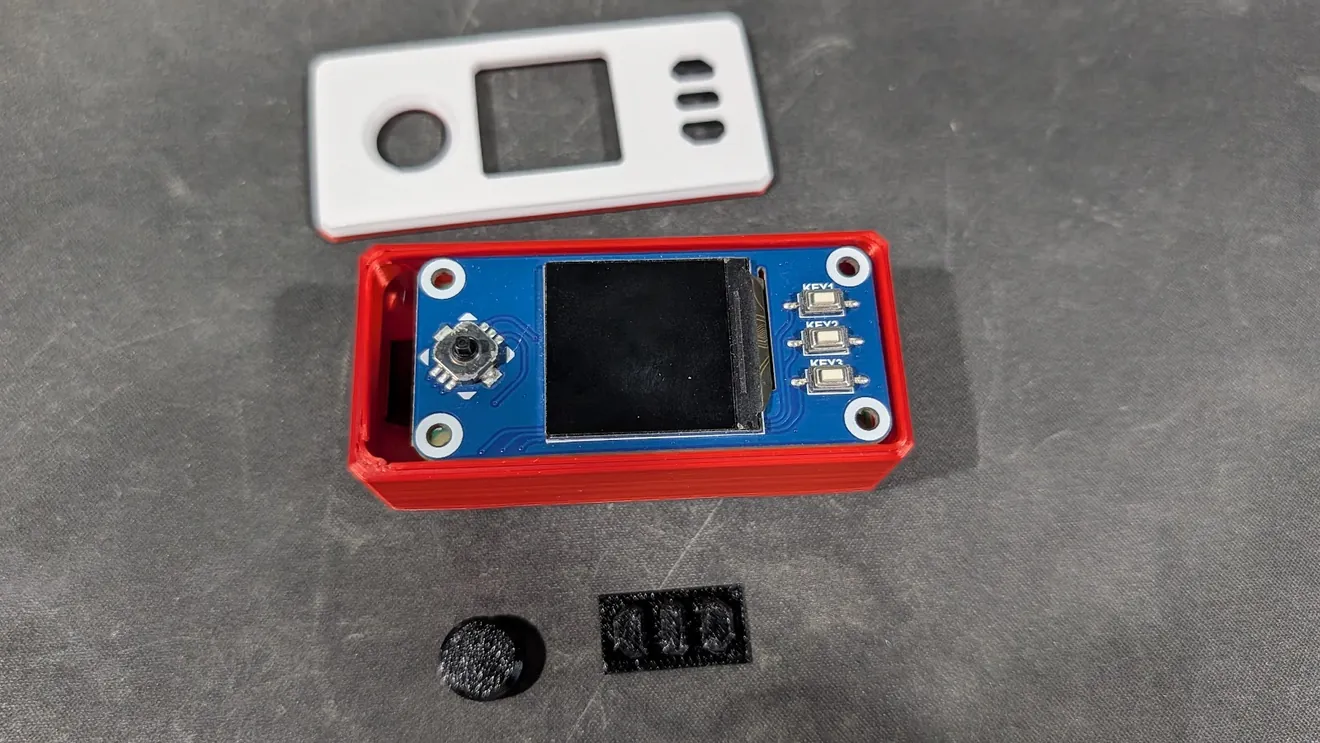
Fit the display HAT
Line up all 40 GPIO positions with the LCD HAT before pressing it down evenly. The screen should face the case opening, with the joystick and buttons at their matching front openings. If pins do not line up, lift and realign; do not bend them into place.
STEP 05
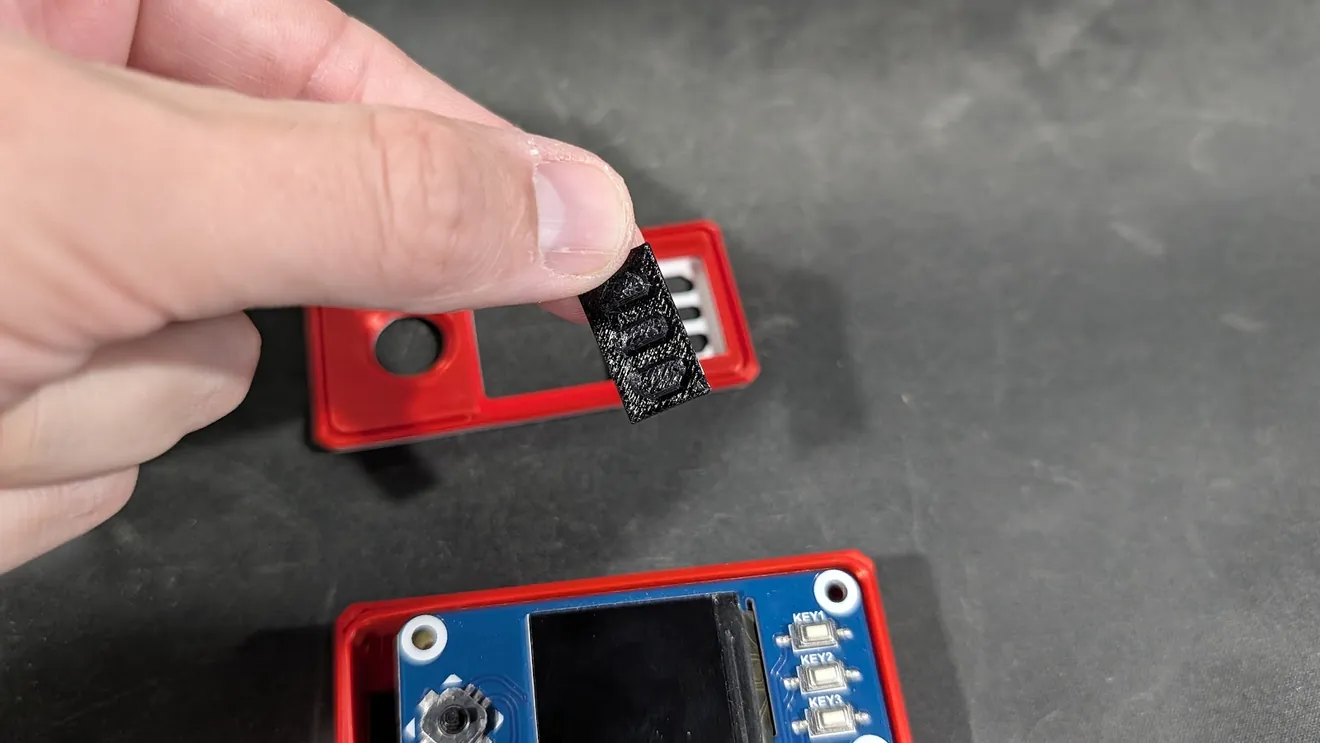
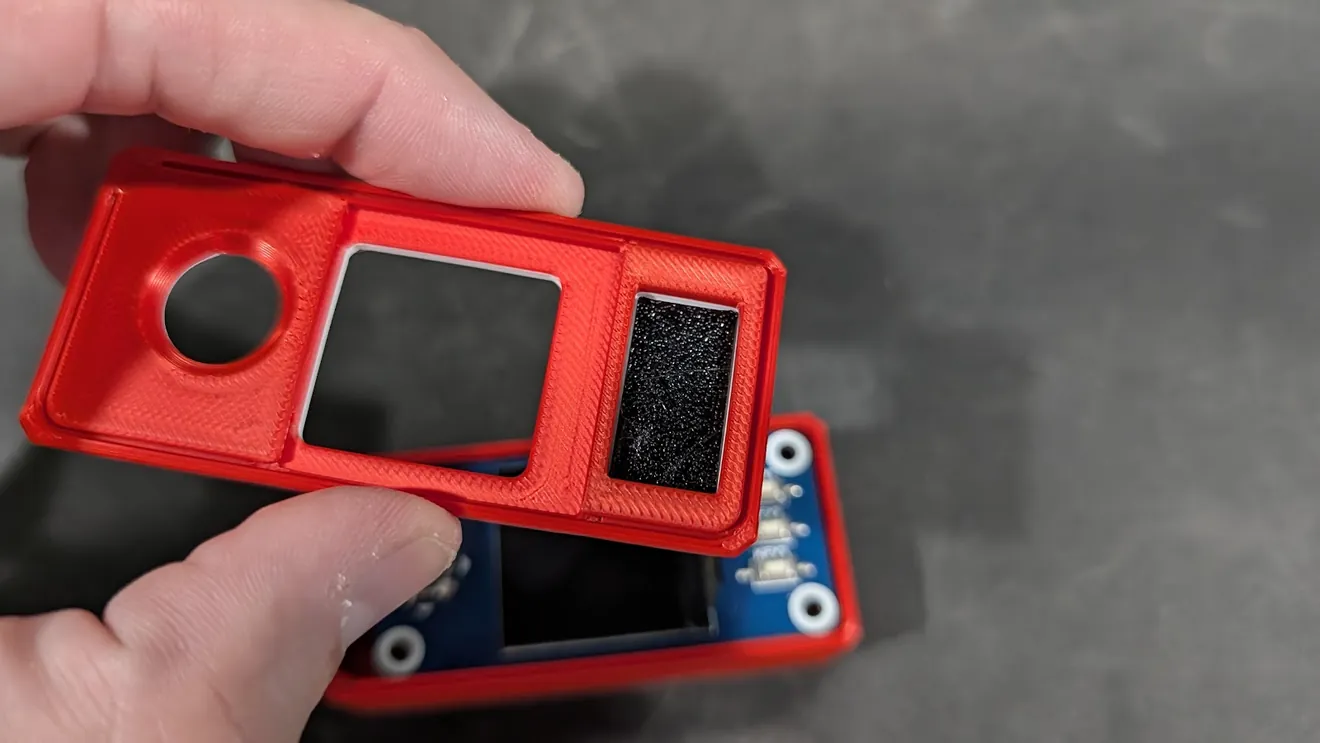
Fit the face and controls
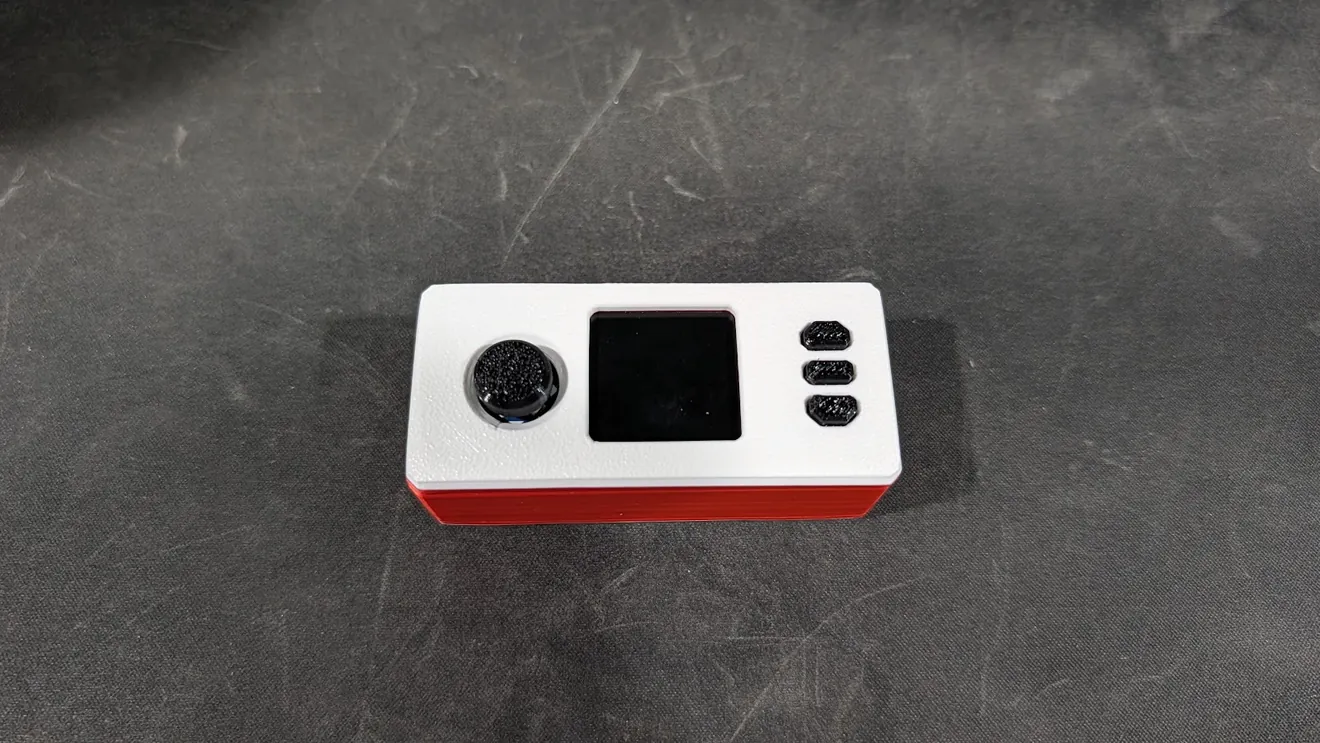
Arrange the supplied small control pieces and printed trim so the openings meet the joystick, screen and buttons. The photos show the red inner trim and the white outer face, but not every fastening motion. Test-fit gently, check that each control moves freely, and do not force a part that binds.
STEP 06
Load the card and check the build
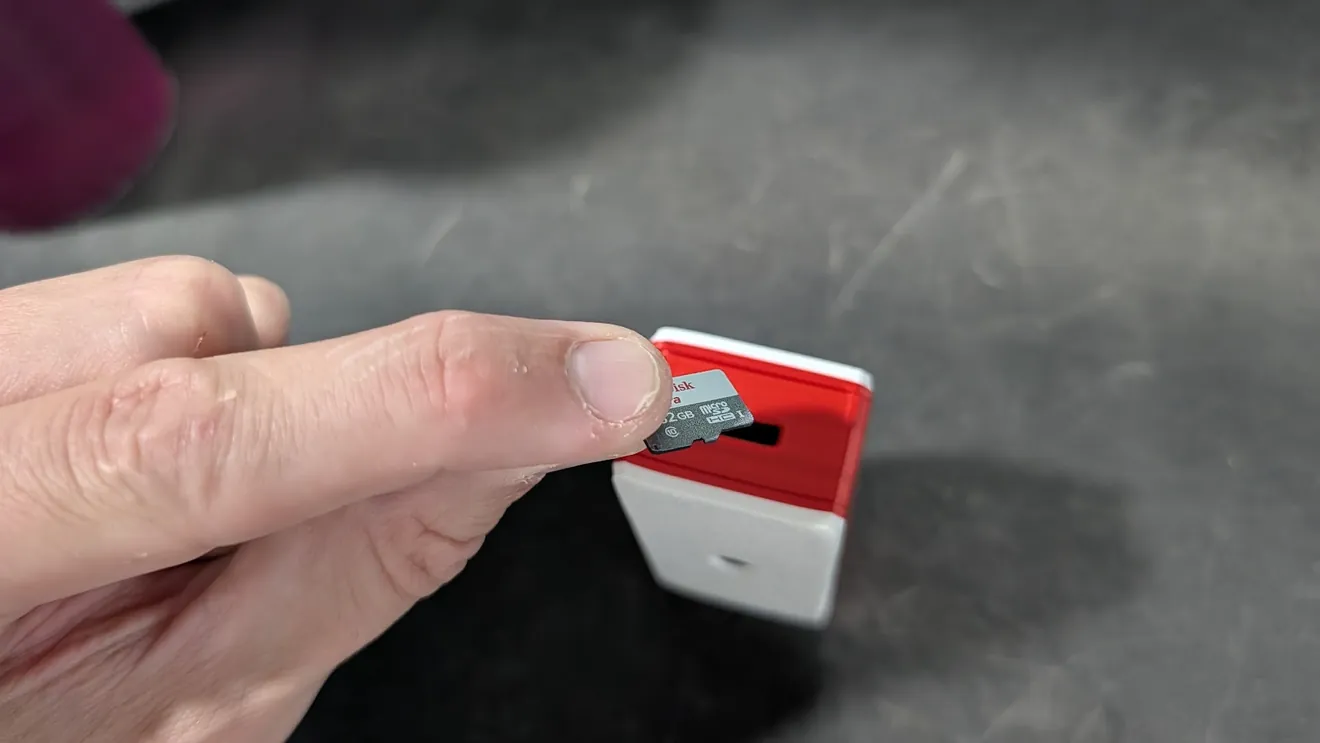
Follow the official SeedSigner software instructions to verify and write the image to your microSD card. Insert the card in the Pi’s slot without forcing it. With the case closed and ports accessible for your chosen layout, power on using the correct Pi Zero power port, then check the display, controls and camera scan. The final photo is an exterior view, not proof that every component has been tested.
02 / SMALLER CAMERA MODULE
Micro camera build
Shown in yellow. Use this path when your camera module and CryptoCloaks case are both the Micro version.
STEP 01
Start with the Micro-fit case
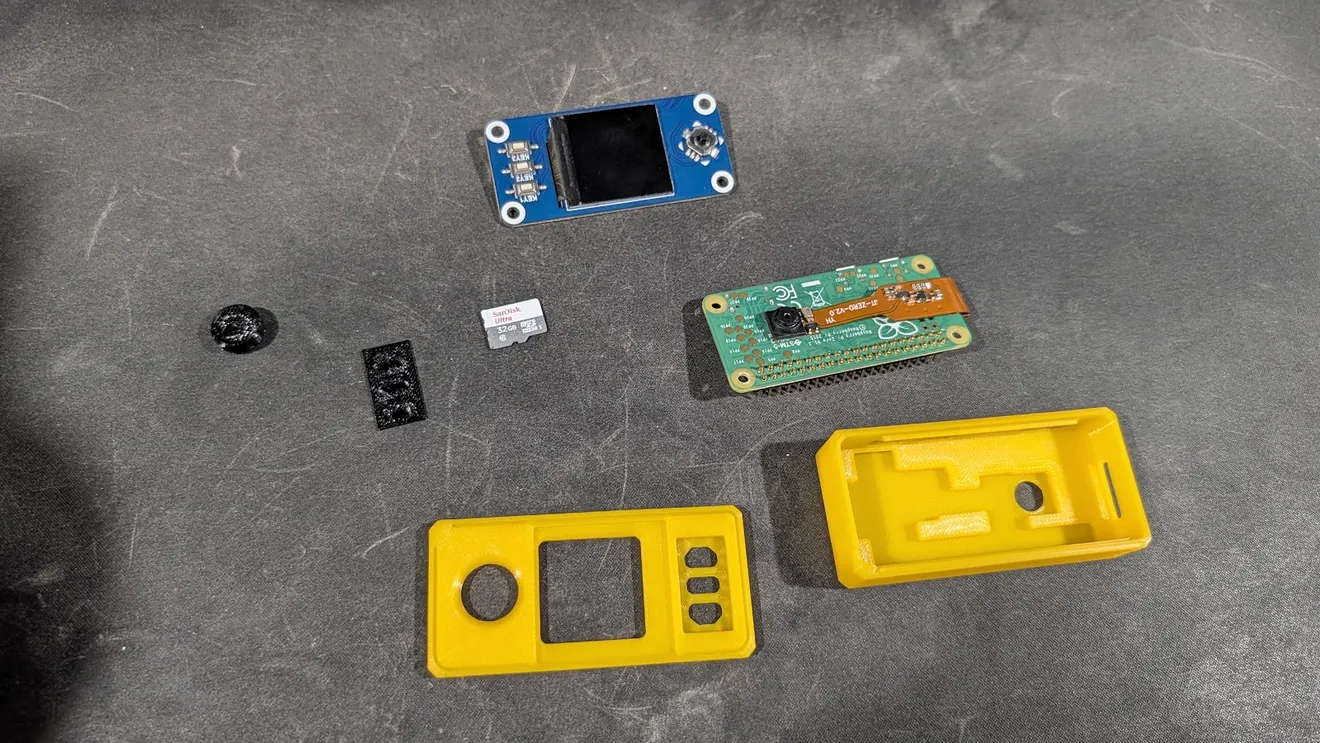
The yellow shell in these photos is the Micro camera example. Set out your Pi, smaller camera and ribbon, LCD HAT and printed parts. Choose the case fit by the actual camera module you own, not the color shown. Have ready: your CryptoCloaks case in the camera fit you chose, a compatible Raspberry Pi Zero with a fitted 40-pin GPIO header, a Pi Zero-compatible camera and ribbon, a Waveshare 1.3-inch 240×240 LCD HAT, and a microSD card with the official SeedSigner image. The case listing is for the printed case only; the electronics and software in these photos are not included.
STEP 02
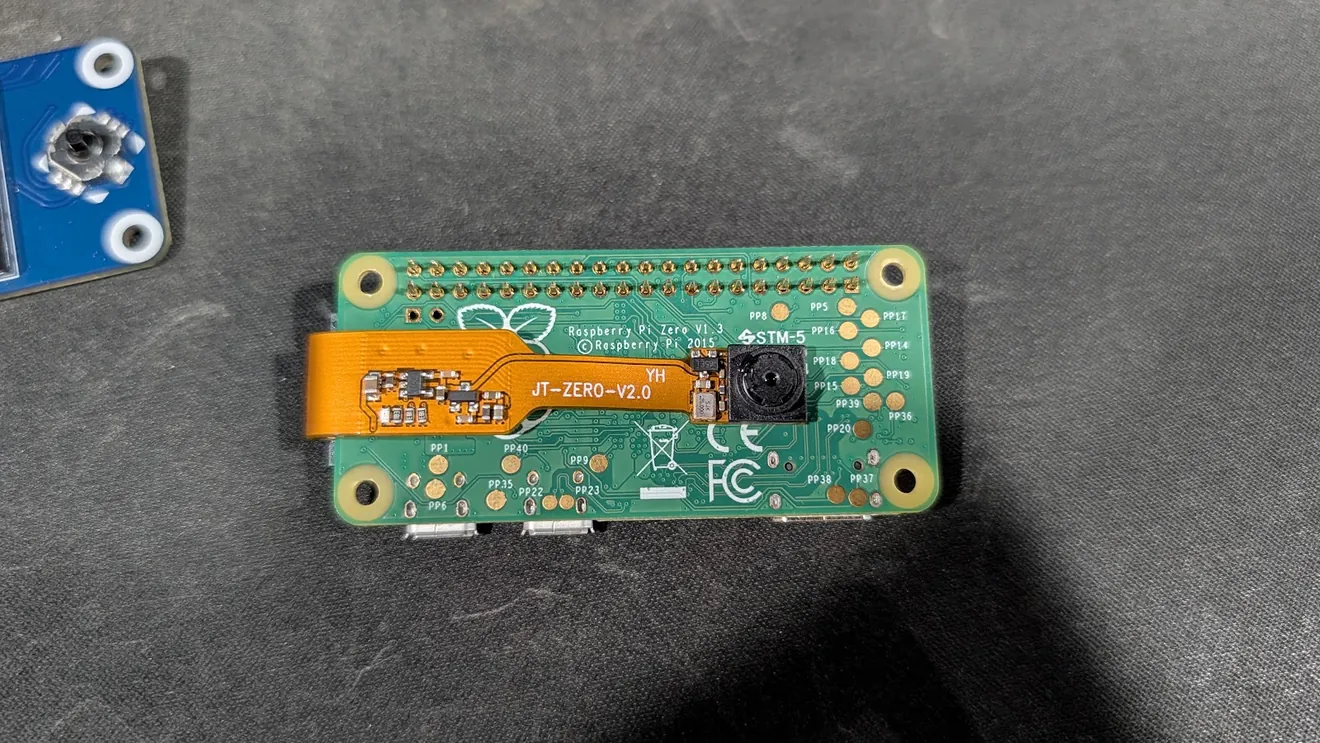
Connect the smaller camera
With power disconnected, connect the ribbon to the Pi Zero camera connector. Use the correct contact orientation for your hardware and close the latch gently. The photo shows the camera beside the Pi, but does not show the cable contacts or latch clearly enough to teach their orientation. Keep the lens pointed toward the Micro camera opening.
STEP 03
Seat the Pi and check the opening
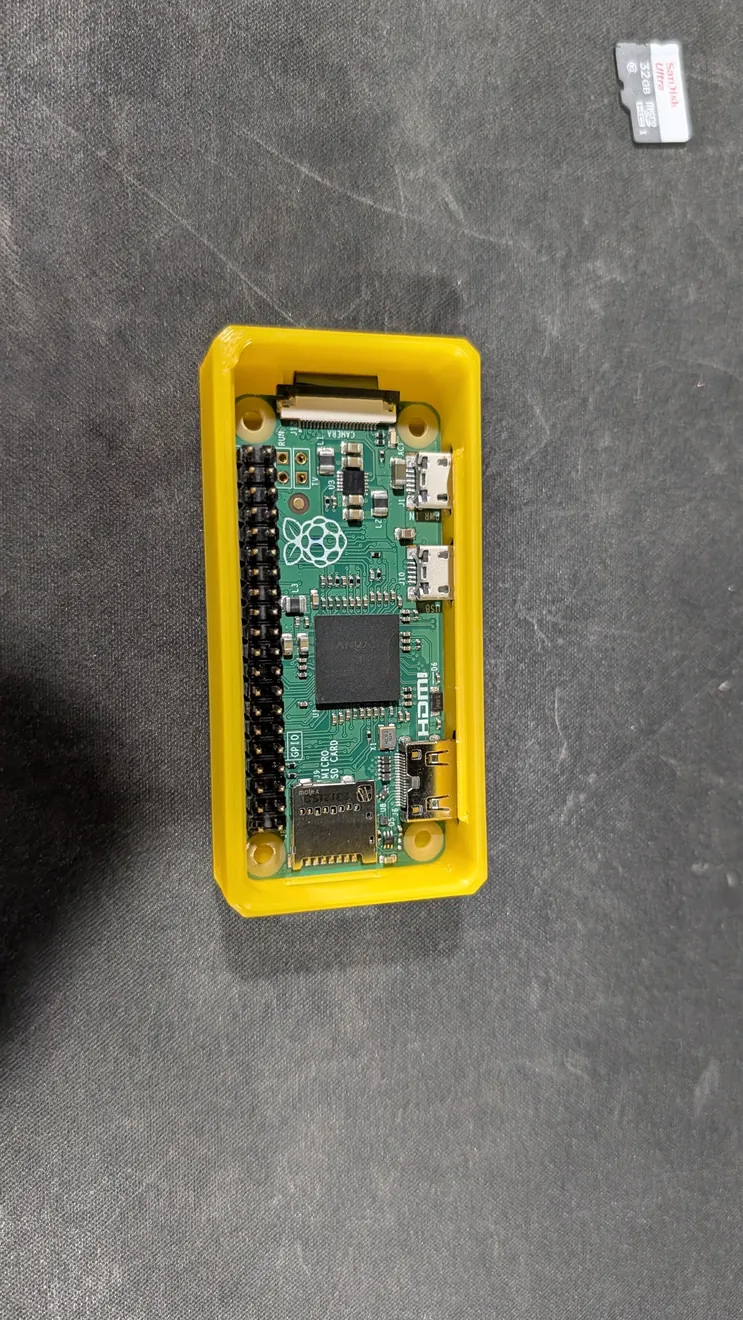
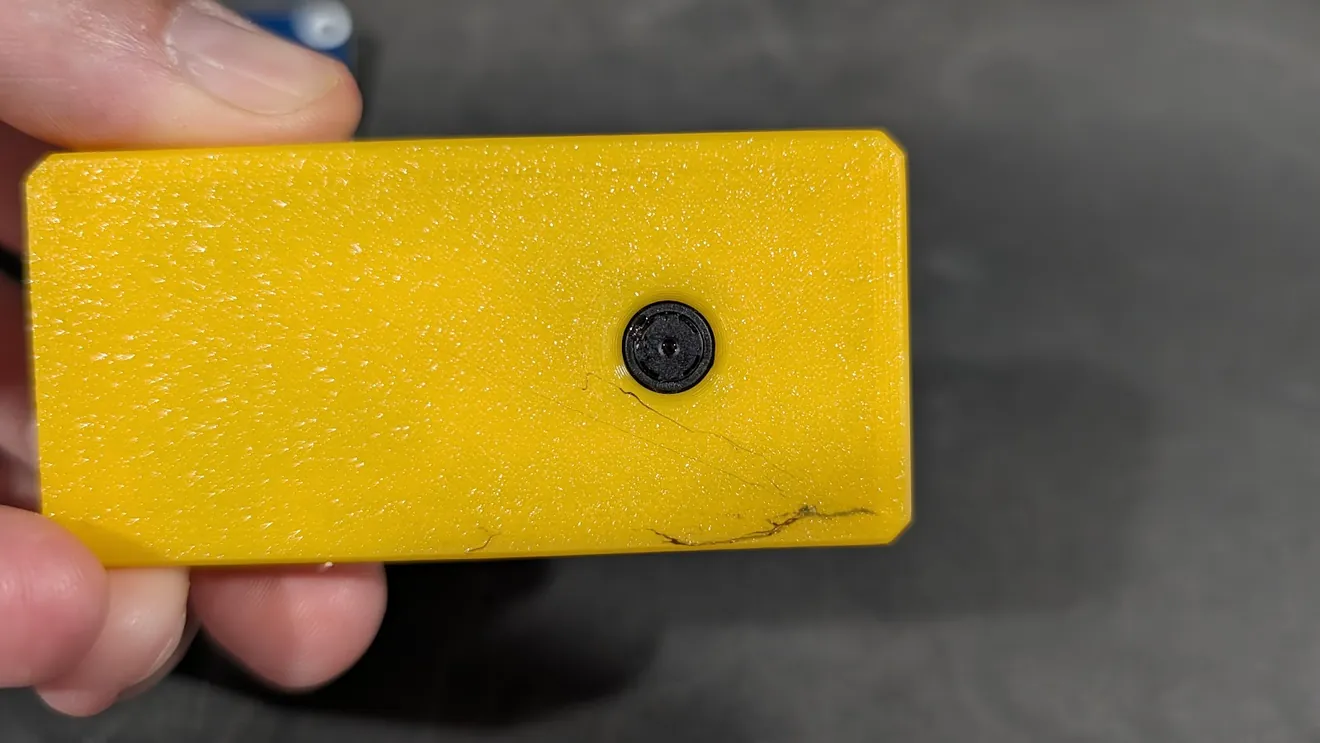
Lay the board into the yellow shell with the case openings lined up to your Pi’s ports. Keep the ribbon clear of the shell edge. Check the circular exterior opening against your camera module before final closure; do not force a camera or board that does not match the printed fit.
STEP 04
Fit the LCD and close the case
Align the LCD HAT with all of the Pi’s GPIO pins, then bring the face and shell together. Make sure the joystick, screen and three buttons line up and move freely. The photos do not show every clip or fastening action, so follow the fit of your particular printed parts and stop if anything catches.
STEP 05
Insert the flashed card and test
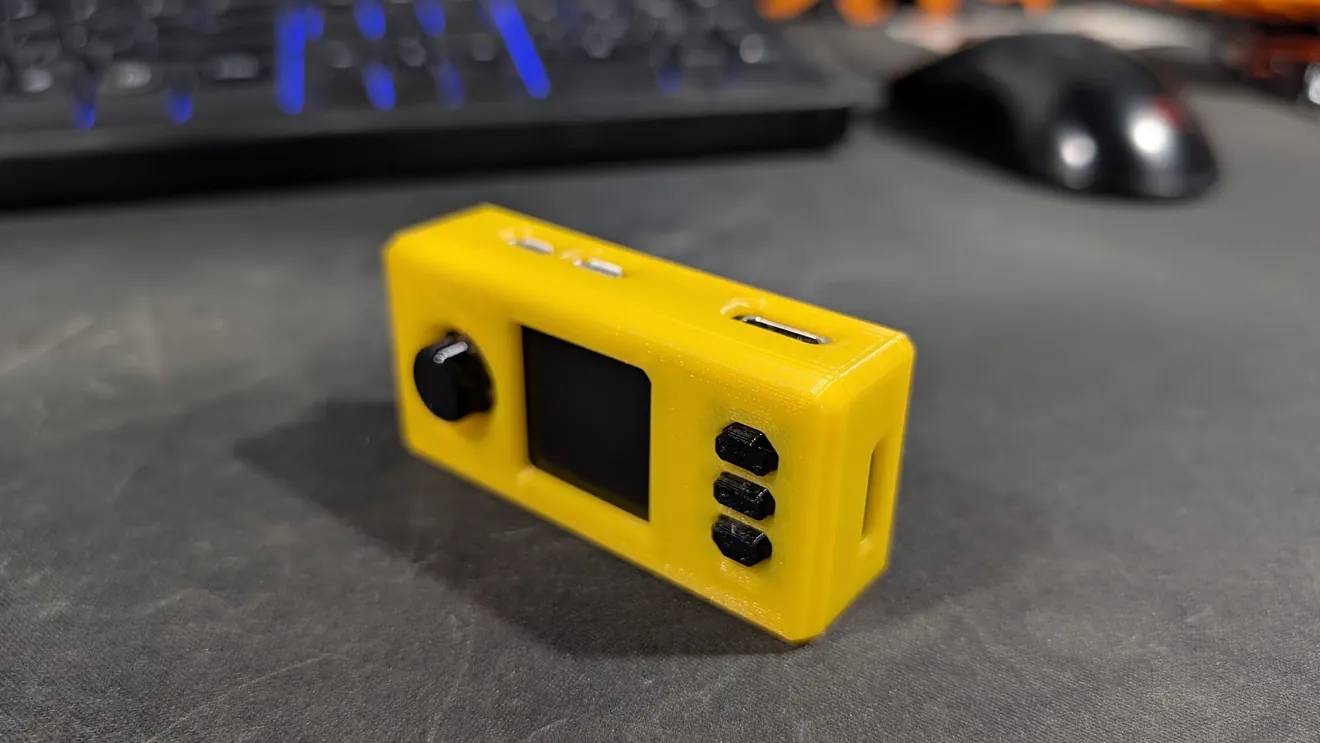
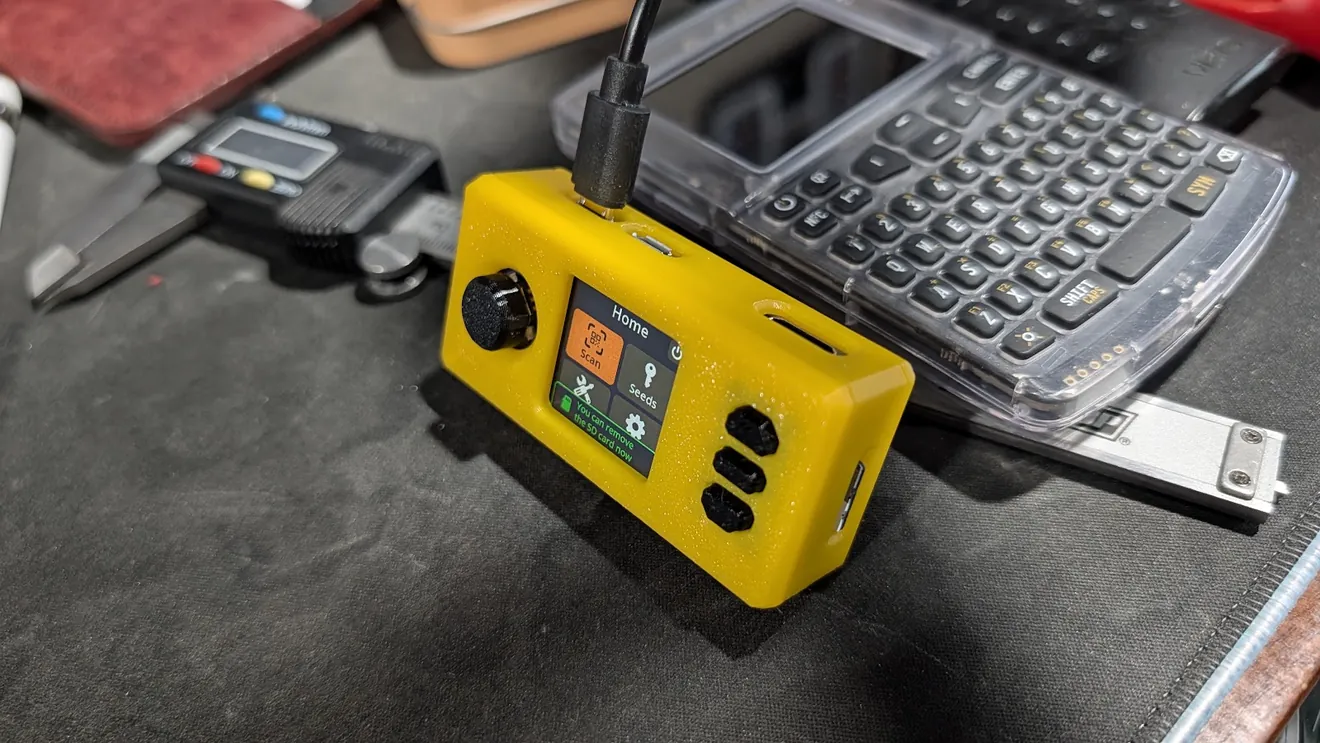
Verify and write the official SeedSigner image to your microSD card, insert it in the Pi’s slot, and connect power at the correct port. Check that the display starts, the controls respond and the camera scans. This last photo shows a powered display; it does not replace testing your own hardware.
Not lining up?
Stop before forcing the case shut. Recheck the Big Pi Camera vs Micro selection, your Pi Zero board and header, camera ribbon, and Open Ports vs Closed Ports layout. A different module or board revision may need a different fit. Closed Ports is not a waterproof seal.
These are photo-based case assembly notes, not a substitute for the official SeedSigner hardware and software instructions. Never enter or photograph a real seed phrase for a support request. SeedSigner hardware → SeedSigner software →